Key feature improvements this edition:
- Change Task Type for Variable Service Templates
- Project Budget Automations
- Assets Last Checked
- Preview default template for Event Messages
- AroFlo Payments
Variable Service Templates - Change Task Type
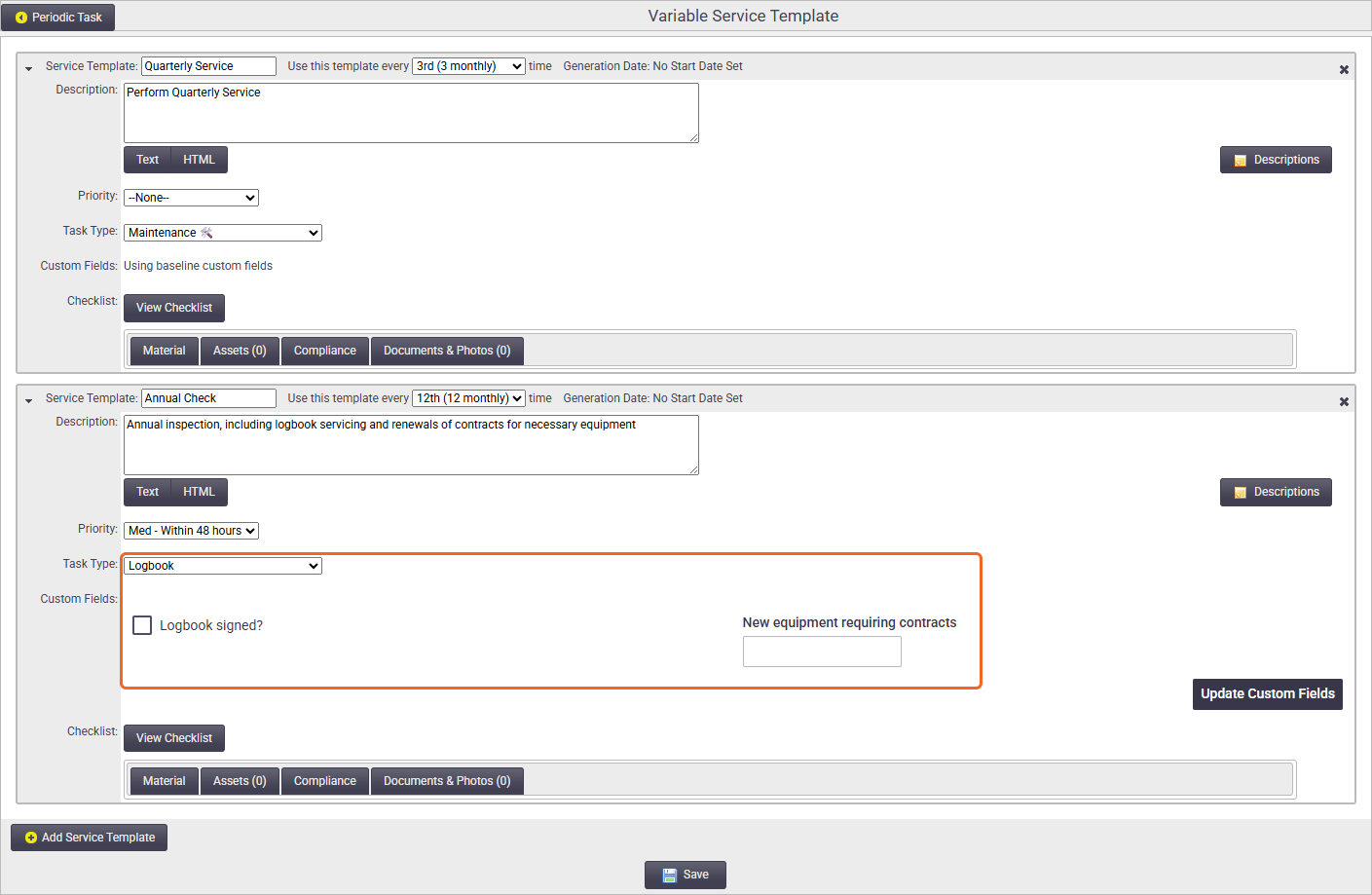
You can now edit the task type of a Variable Service Template if you need to. This means you can use different custom fields and task asset fields to that of the base template.
More on Variable Service Templates
Project Budgets: Insert quoted values
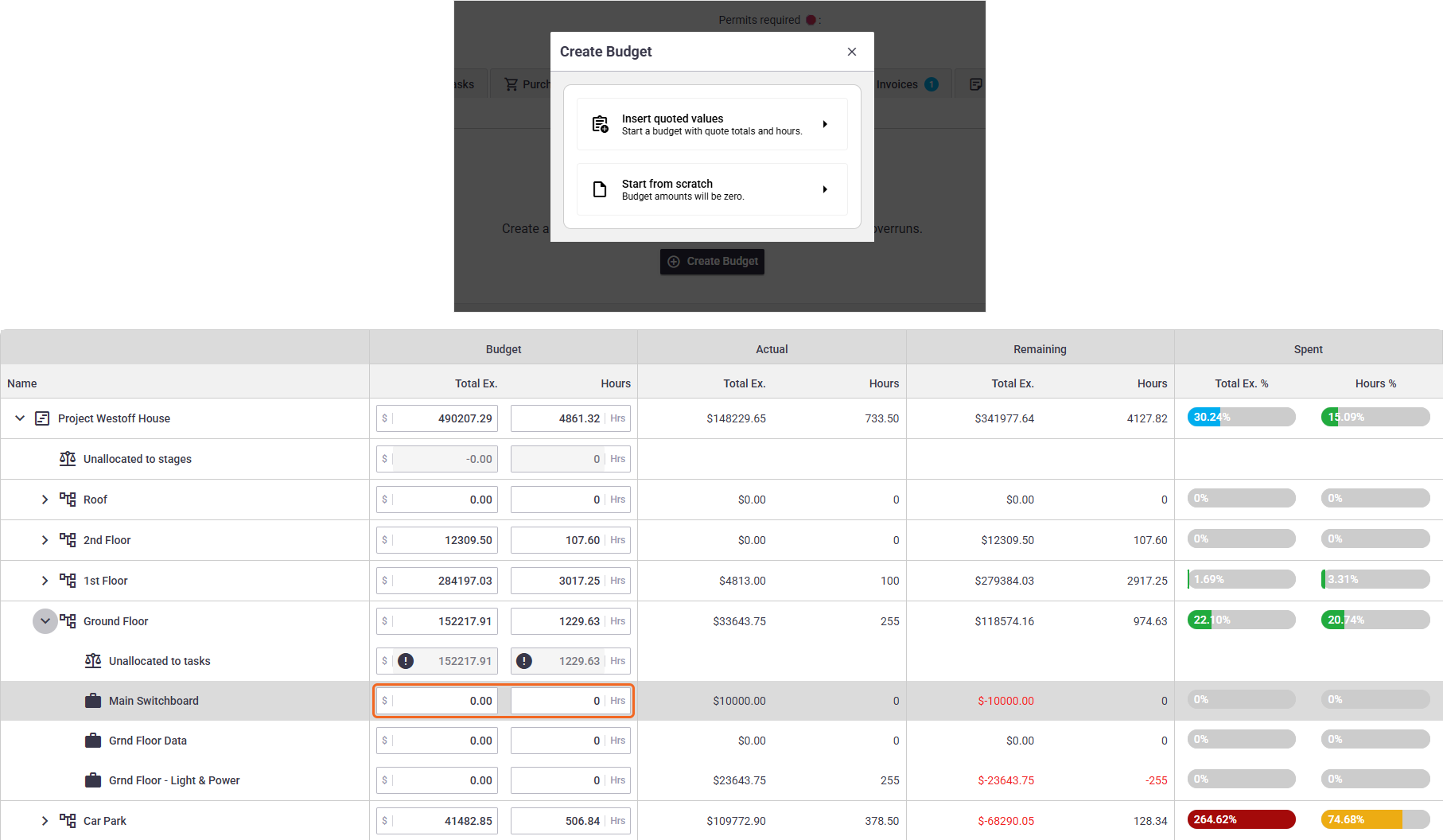
We've made it even easier to create project budgets! When creating your budget, you can now choose to prefill the values for costs and hours for the overall project and stages with the estimated values recorded on quotes attached to the project. This option is ideal if your project was created from a detailed quote. Note that values for tasks will need to be manually entered.
AroFlo Payments 💳
We've introduced AroFlo Payments. Using AroFlo Payments, your clients can use our client payment portal to instantly pay their invoices you send to them online using our Online Invoices feature.
When setting up this feature, AroFlo automatically creates a Payment Method with the name of ‘Credit Card’ and includes a ‘Pay Now’ button on your online invoices.
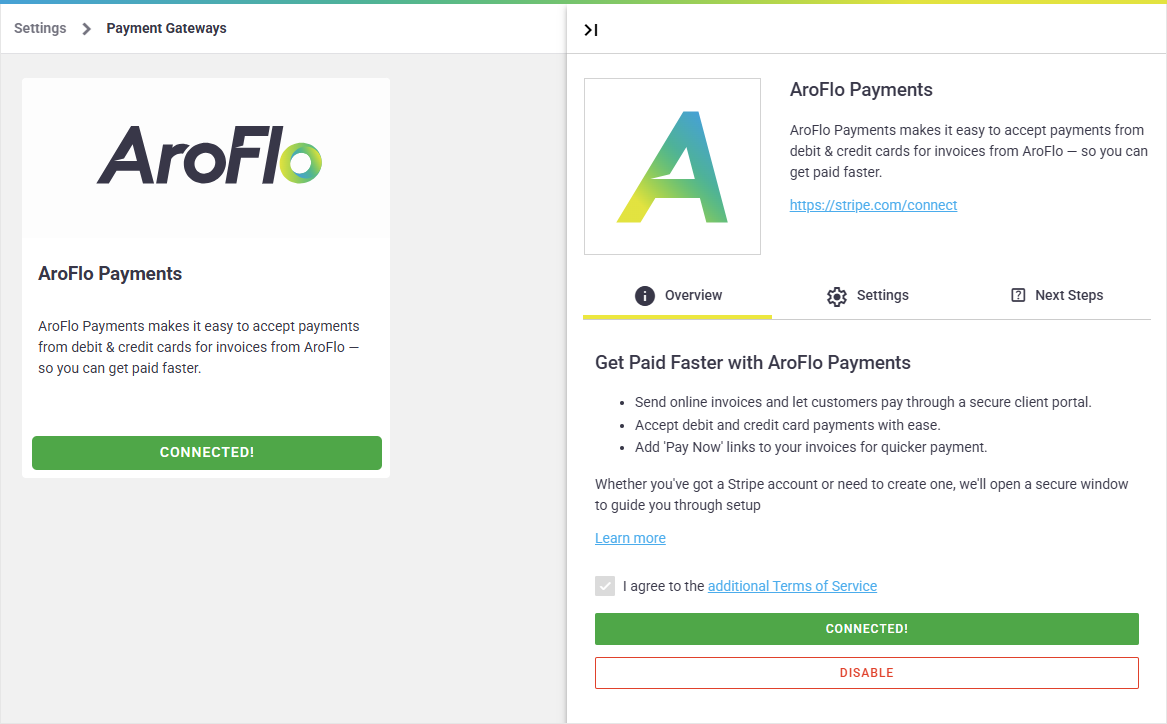
Sign up to AroFlo Payments using the Payment Gateways area or via the Getting Started Assistant.
Assets: Last Checked
You can now see the last checked status of an asset! This is the status of the asset for the last completed task the asset was checked on.
Last Check appears beside the asset on the asset list on a task, as well on the asset card itself and can be overridden from here if necessary.
You can also add this field to your Asset reports.
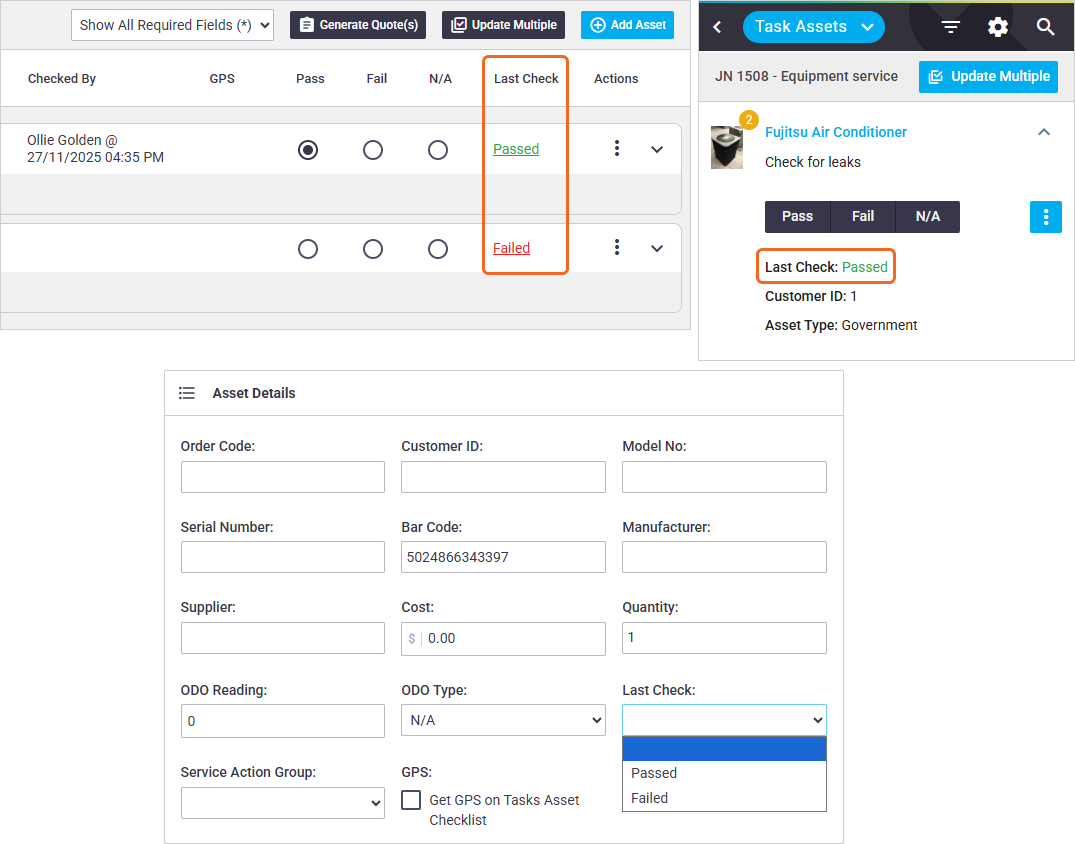
Last Check column in the task asset list in Office | Last Check info in the task asset list in Field | Last Check field on an Asset Card in Office
AI Form Builder ✨
We've released our AI Form Builder into a Beta phase.
If you have existing compliance forms saved on your computer, the AI Form Builder is a great way to easily generate your form, and populate it with the relevant form fields, saving you from creating compliance forms from scratch.
The AI Form Builder is currently live to all clients. Once the Beta phase has finished, this will be a paid feature.
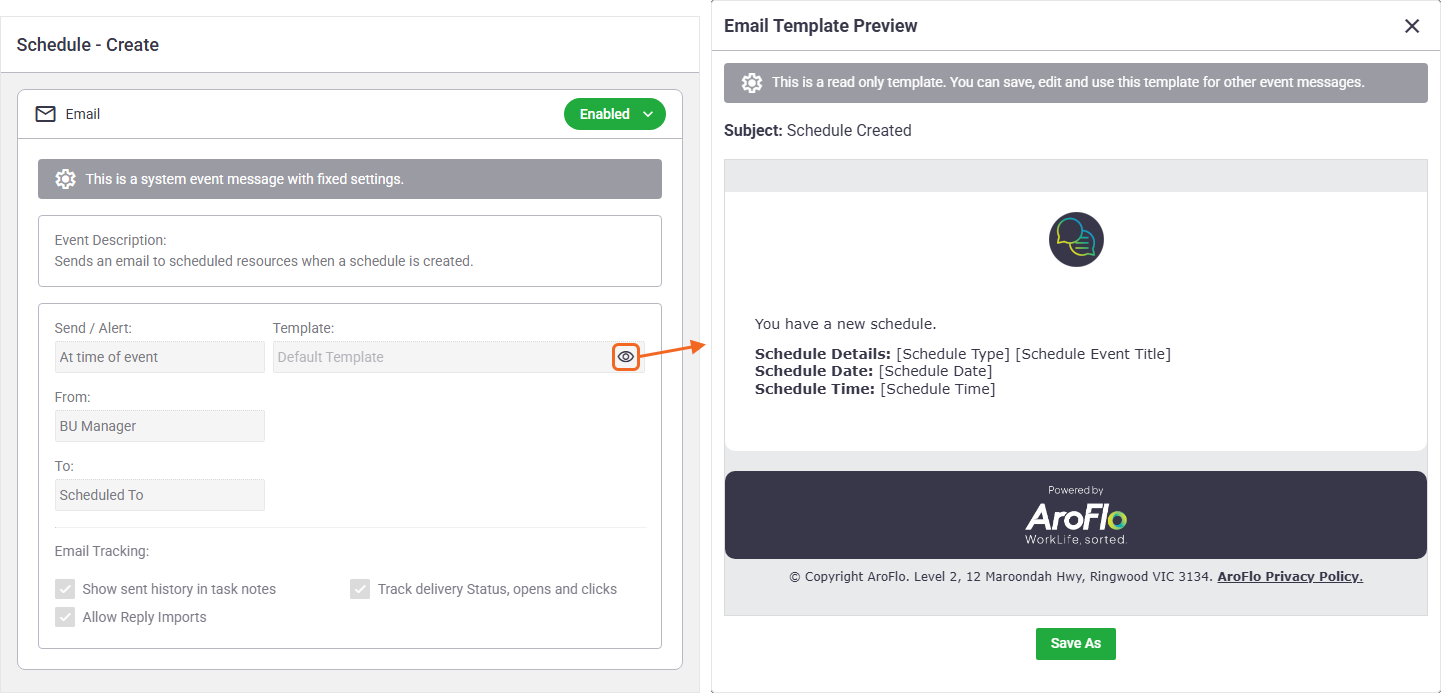
Event Messages: Preview default template
We recently made it easier to create Event Messages by displaying the content of default templates so that you can use these as is or make edits to them when creating your own event messages.
We've now gone one step further. For Default Event Messages with a type of ‘email’, you can now preview the content of the Default Event Message Template. In addition, you can even save a copy of it and use it with your own event message, or make edits to it first.
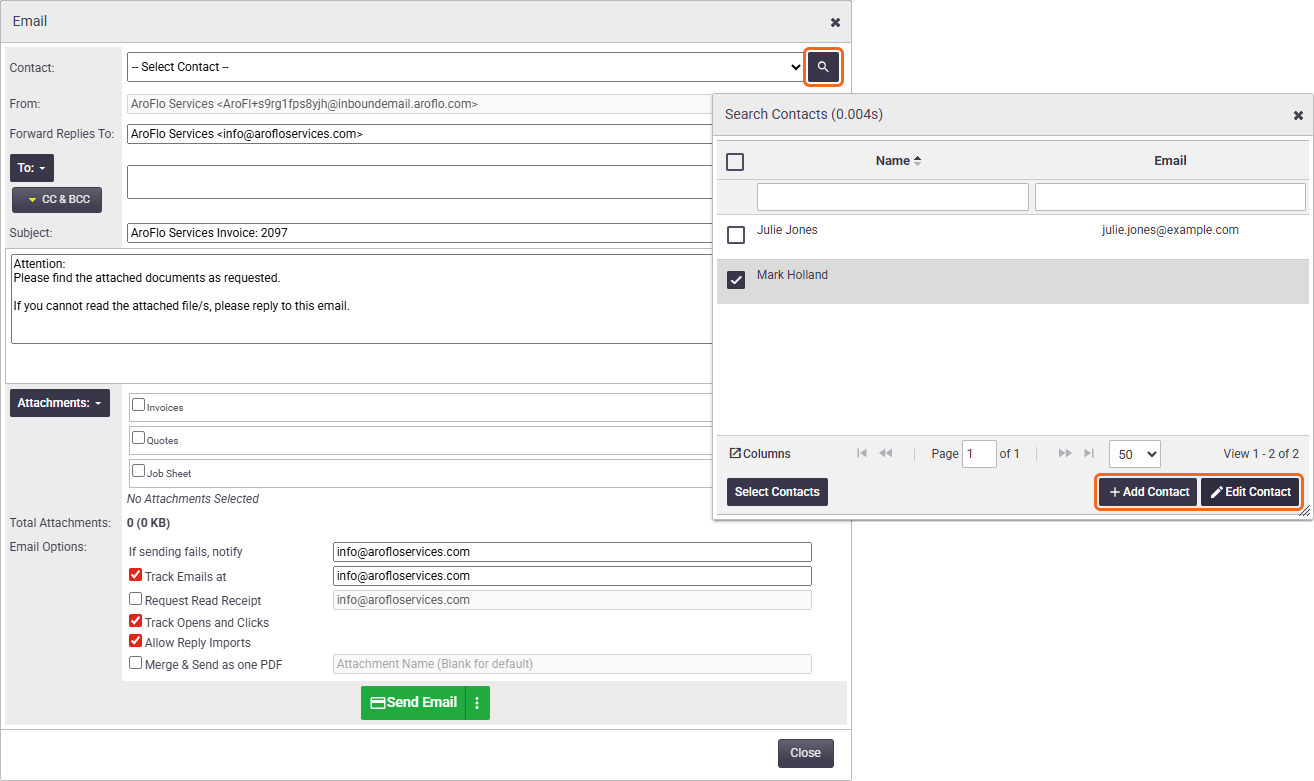
Office: Add and Edit Contact from Email window
When sending an email in AroFlo Office, you can now add and edit a contact straight from the Email window! Look for the 🔍 magnifying glass option. This will save you from having to go back to the client card to fix any missing information (e.g. missing email addresses) before sending your email.
This is available when emailing an Invoice, Quote, or Task.
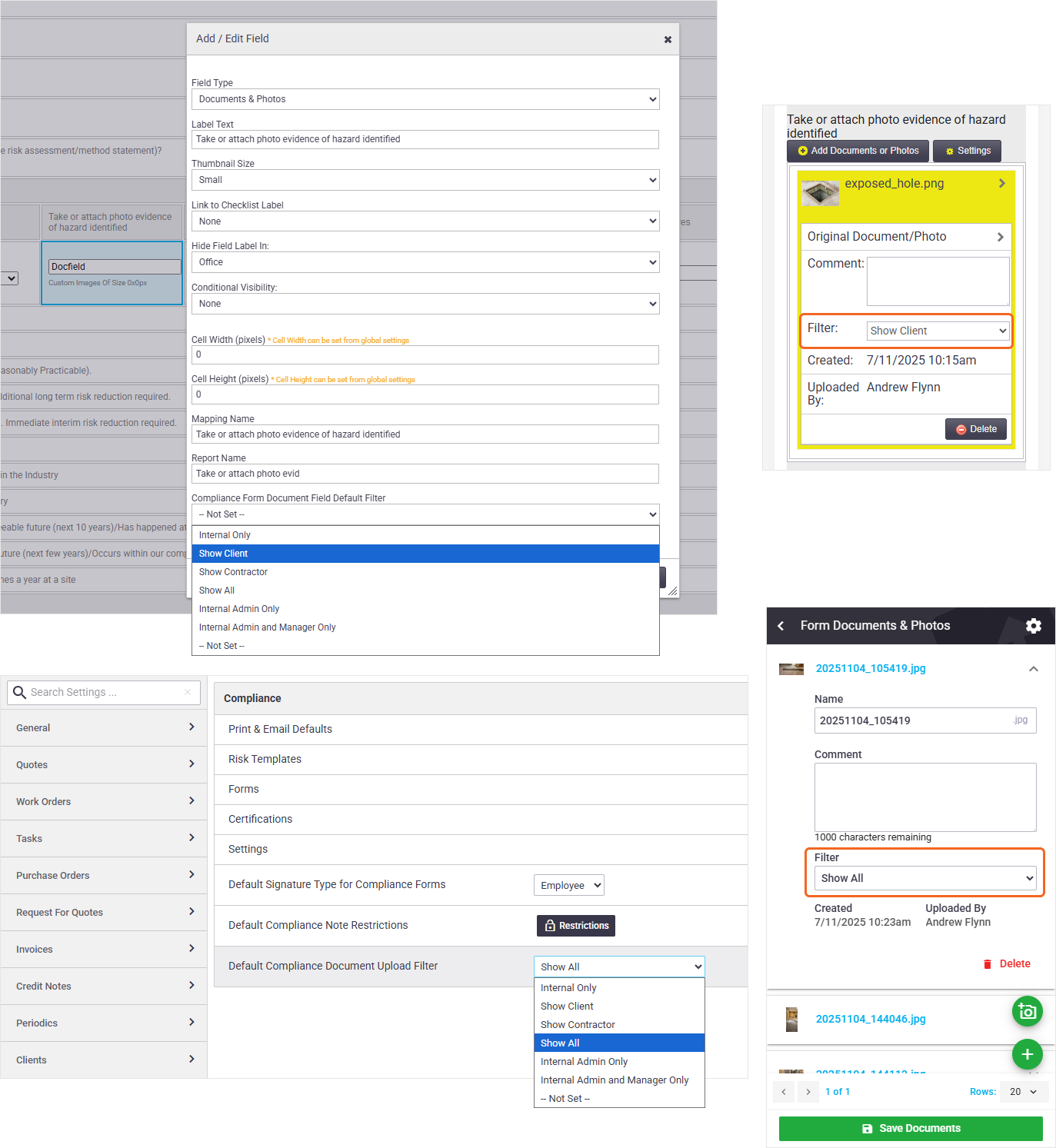
Compliance Form Default Document Upload Filters
We've introduced a default filter for Documents and Photos uploaded to Compliance Forms. This is useful if you want to use a different filter to your overall default, set in Document and Photo Settings.
In addition, you can also set a default filter on individual Documents & Photos custom form fields. This is useful if you have certain image fields on your custom forms that you need to be visible to clients, and certain ones that are only applicable for internal staff.
More on Custom Forms | Compliance Settings
Default Image Upload Resolution
We've made a couple of improvements to the Default Image Upload Resolution setting. The default setting for uploaded photos is now set to original size. In addition, to make it easier, we've reduced the number of available options when modifying this setting to Small, Medium, and Large.
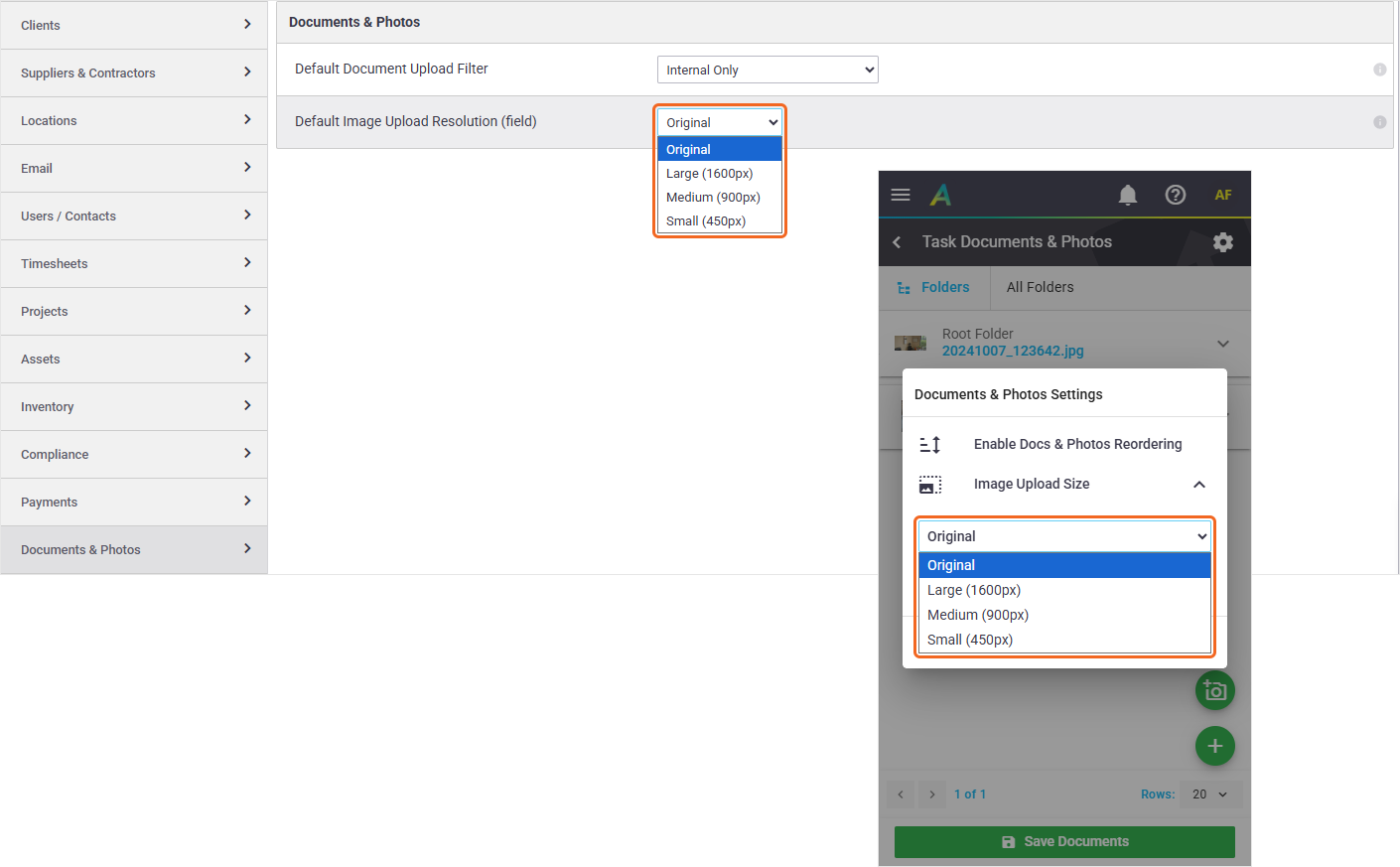
More on Default Image Upload Resolution
Office: Priority in Quote Preview
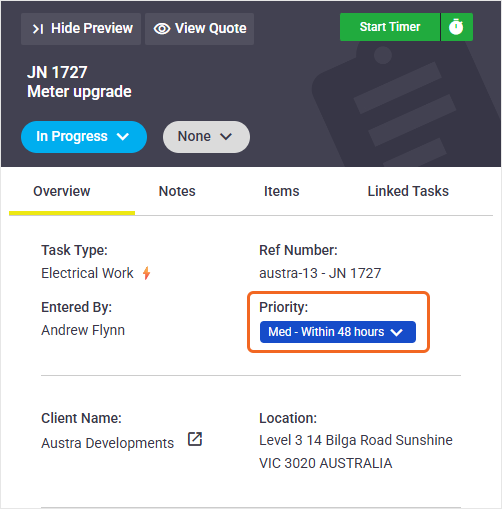
You can now view and update a quote’s priority straight from the quote preview, just like you can do for Tasks.
This improvement saves you time as you won't need to open the whole quote worksheet to edit a quote priority.
Calendar Scheduling: Sales Person column
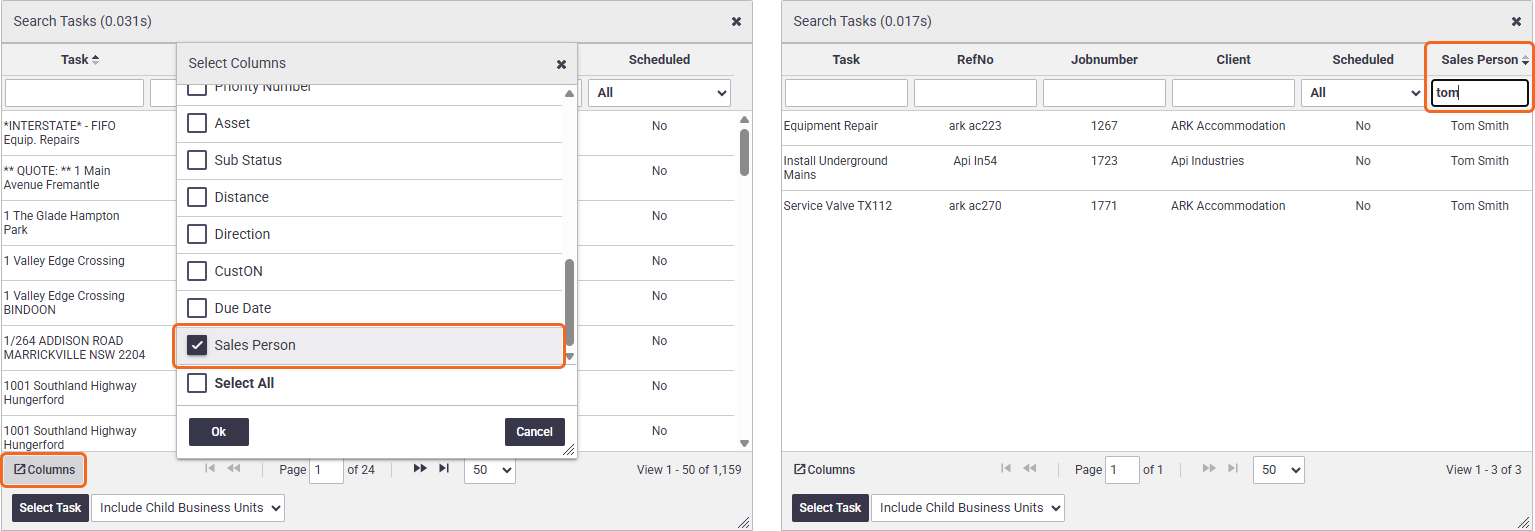
We've added a Sales Person column when scheduling from the Calendar! This is useful if you want to book out tasks/quotes according to the salesperson responsible. You can also use this field to sort and filter. This feature is available when blocking out time and selecting a task/quote/periodic to schedule, and also when using the drag and drop feature (green plus button). Enable this column to start using this feature.
Report Fields and Filters
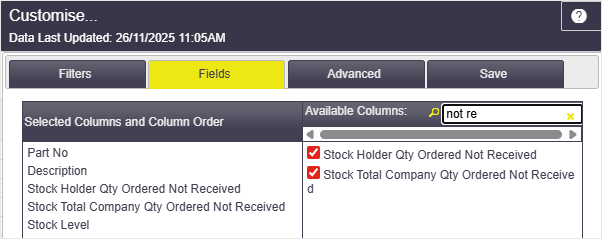
For Inventory reports, we've added two new fields to help you see how many of each item you have on order and not received yet:
- Stock Total Company Qty Ordered Not Received - Shows how many of each item has been ordered but hasn't yet been received, for your whole company
- Stock Holder Qty Ordered Not Received - Shows the same information but per Stock Holder/Stock Assigned To.
These fields may save you from accidentally raising orders for items that have already been ordered but are yet to be received.
For Task reports, we've added two new fields:
- Profit or Loss Per Hour - this is made up of [Profit Or Loss]/[Labour Hours Total]
- Quote vs Task Profit Margin Percent - this is made up of (([Quote Total Sell Ex] - [Task Total Cost Ex])/[Quote Total Ex])*100.
This means that:
- You can now see your profit or loss per task hour and not just the hours you invoice
- You can see a realistic profit margin based on your quoted sell minus your task cost.

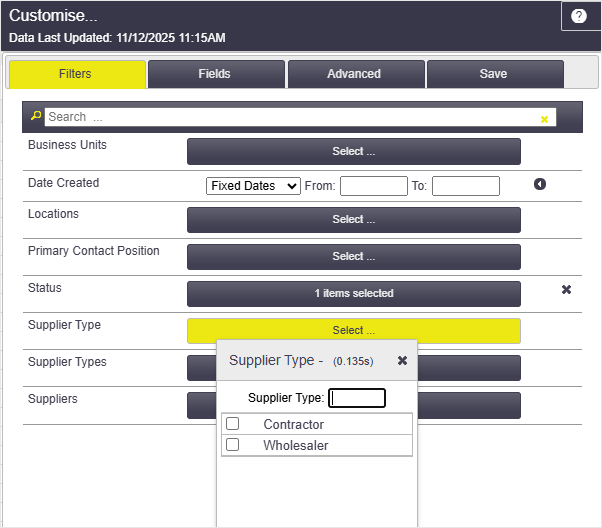
For Supplier reports, you can now filter on Supplier Type so that you can filter the list to show only suppliers set as Wholesalers or Contractors.
Layout Fields
We've added some extra fields to Task layouts, which work with captured GPS data 🌎 on photos added to the task:
- Image GPS Latitude
- Image GPS Longitude
- Image GPS Date Taken
- Image GPS Map Link
More on GPS Data on photos | Layouts
Email Template Fields 📨
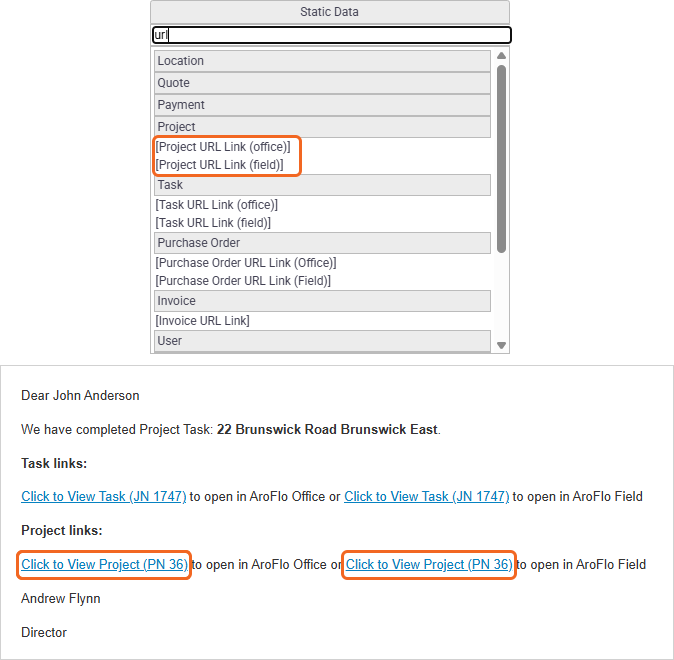
We've added Project URL links for both Office and Field to email templates. Use these in your email templates for quick links to open the corresponding project.