Key feature improvements this edition:
- Activity Log: Task Schedules
- AroFlo App: Offline Mode
- Office: Layout Editor
- Office: Create Custom Task List Views
- AI Rewrite
- Field: Compliance Forms Update
Activity Log: Task Schedules
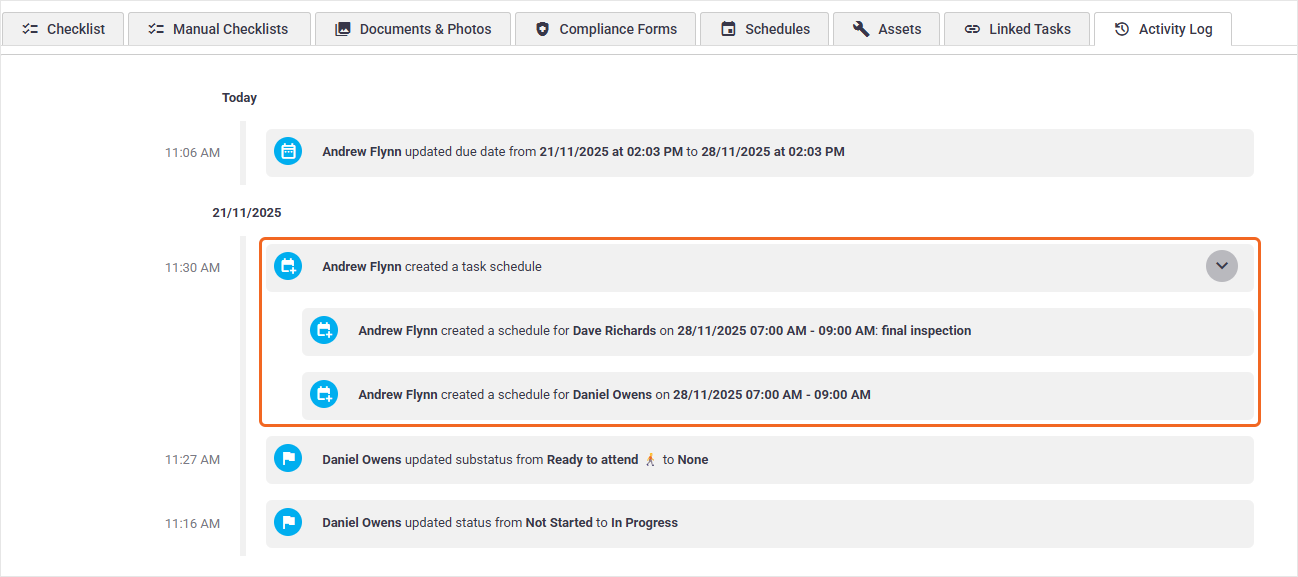
We've added Task Schedules to the Activity Log! This means you can see information for when a schedule was created, edited or deleted.
If multiple updates were made at the same time, these will be grouped in the entry.
AroFlo App: Offline Mode
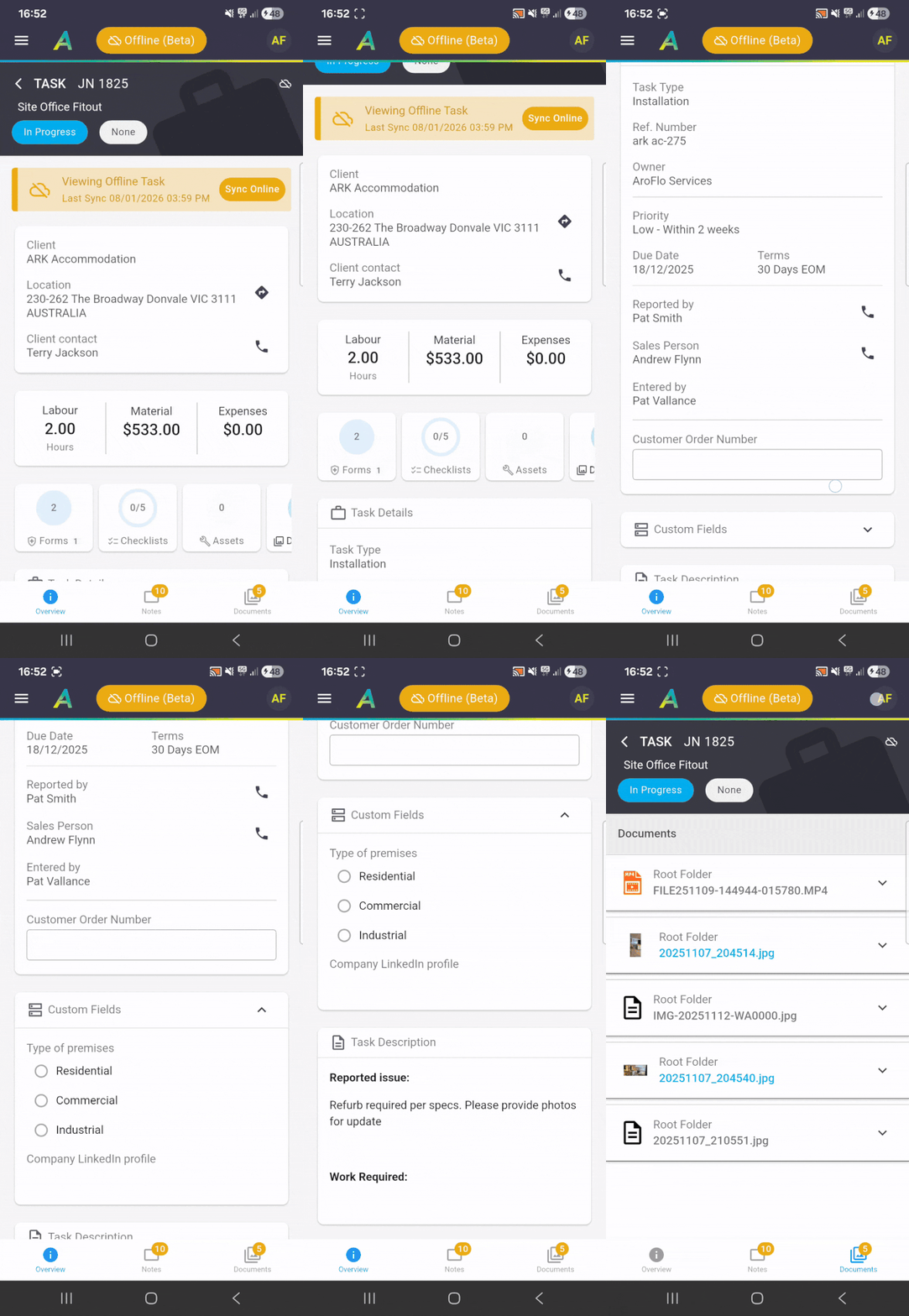
We're happy to announce that our Offline Mode Beta is now officially open and available to all clients using the AroFlo app!
Benefits of our new and improved Offline Mode:
- View task when offline - View key task details like task information, notes, and documents, in areas with poor or no cellular service, as well as add Task Notes while offline
- Task Documents & Photos - For data-heavy tasks, you have the flexibility to download all documents, select specific files, or skip them to save space
- Bulk Sync from Timeline - Choose to sync tasks one by one, or make your entire day’s schedule available offline with a single tap
- Offline Daily Schedules - Scheduled times display alongside tasks, ensuring the daily timeline remains visible even without a signal.
Office: Layout Editor
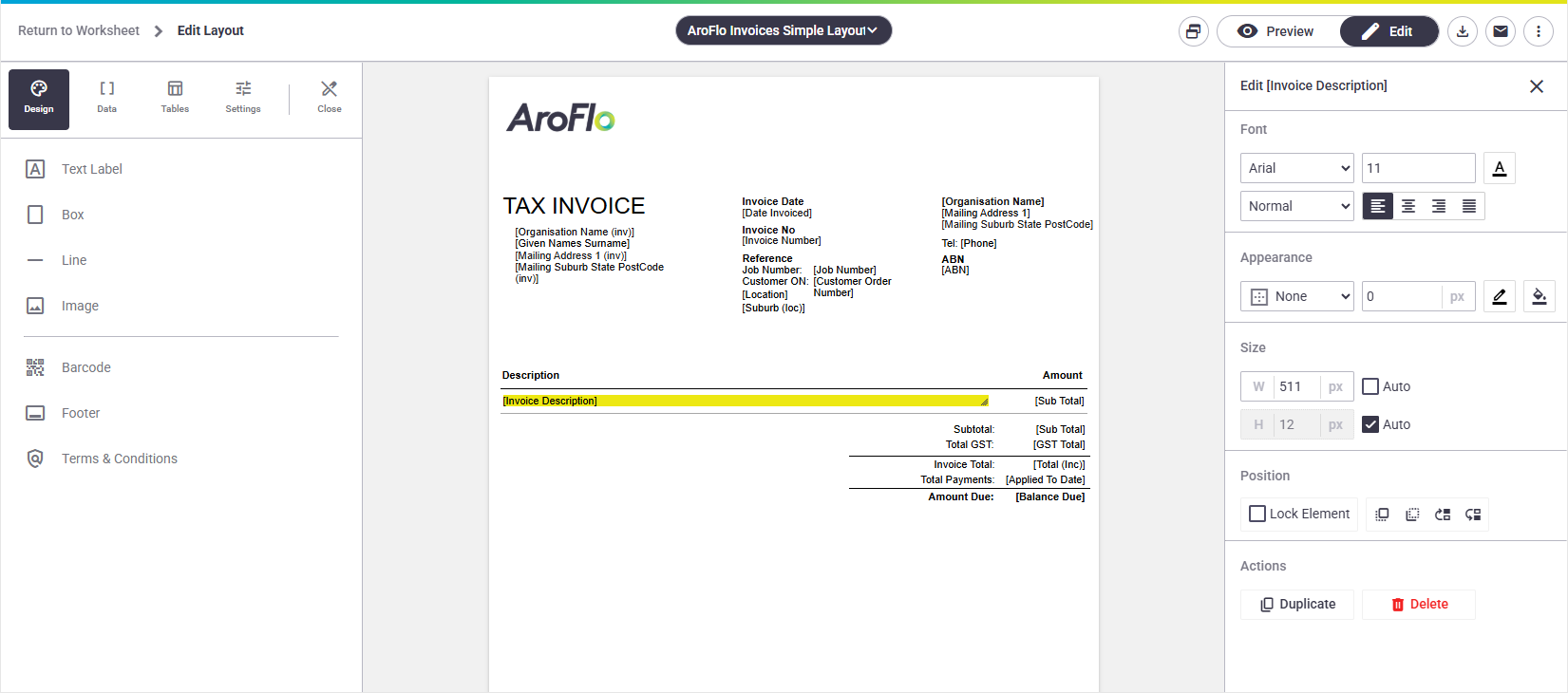
We've given our layout editor a much-needed refresh!
You'll now find design elements as well as key layout settings are found in the panel to the left, and editing options for design elements is done in the panel to the right.
Other advantages of the new editor:
- Easily switch between Edit and Preview mode without needing to click Customise each time you want to make changes to a layout
- Finding the right data field is even easier as 'static' and 'dynamic' data is now merged together
- New option to preview in a pop-out window
- New option to easily view the Online View
- Easier to Save layouts using the floating Save button or Save As
- Prompt to save changes or discard if you've forgotten to save changes
- You can save and close the layout editor window in one step
- Additional support for RTF layouts, meaning you can now preview what your RTF will look like without having to first download a PDF copy!
Office: Task List Views 👁️
We've made the task list even easier to use!
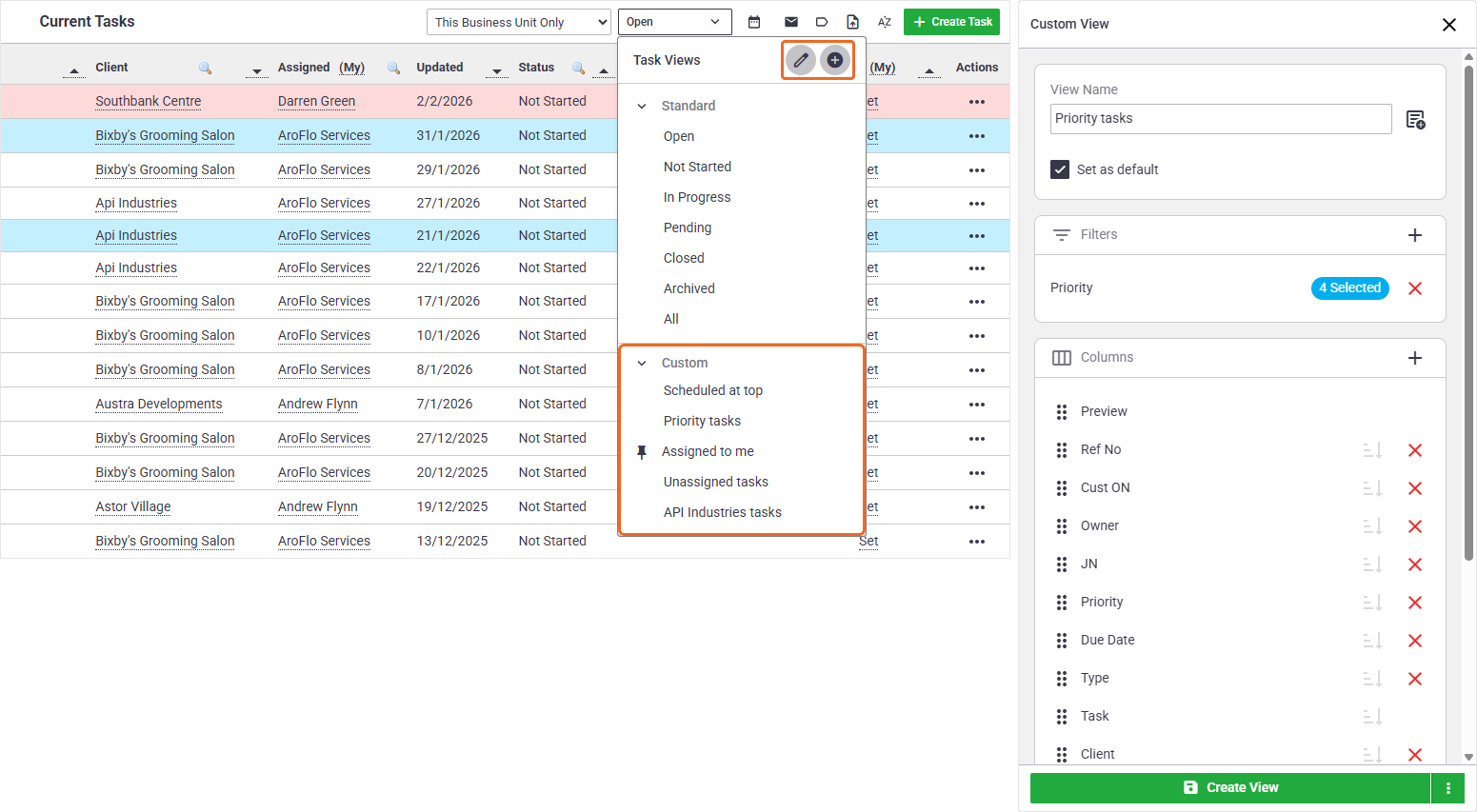
You can now create your own task views, using a combination of filters and columns, in addition to being able to customise the order of the columns.
Here are a few examples of different task lists you might want to create, but the possibilities are endless!
- Only tasks with a Priority attached to them
- Only tasks for a certain client
- Only tasks belonging to one or more Substatuses
- Unscheduled tasks at the top of the list
- Only tasks belonging to one or more task types
- Only tasks that are assigned to you.
This feature will also save you from bookmarking different task list views
Click the status filter dropdown at the top right of the task list to create and manage task list custom views.
Field: Compliance Forms Update 🛡️
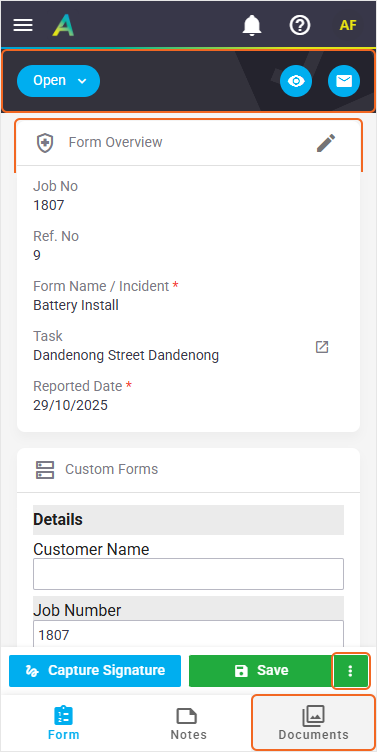
We've given Compliance Forms in Field a revamp!
Key improvements with this new look:
- Form status follows down the page, saving you from scrolling up
- New Save and close form option
- Easier ways to preview, email, or print your form
- New Documents tab
- Form is broken up into sections, similar to the layout of tasks
- Save button now says Create Form upon first save.
More on Compliance Forms in Field
Office: Online Payments refresh 🌐💲
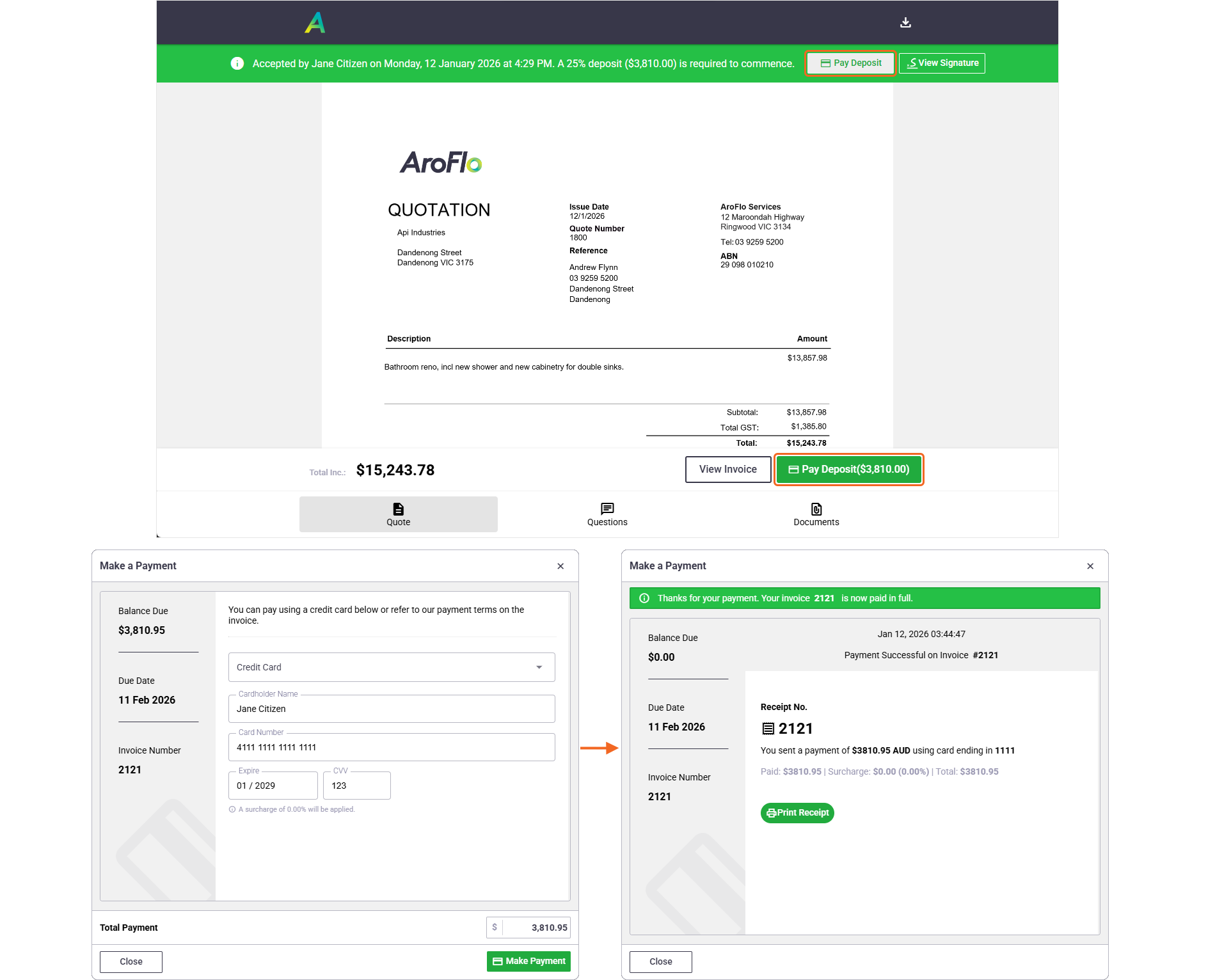
We've revamped the look and feel of the payment screen when your clients make a payment using our Client Payment Portal.
When making a payment, the payment window now opens as a pop-up screen instead of opening a new window, making client payments even easier.
This works in conjunction with our Online Invoices and Automated Deposit Invoicing features.
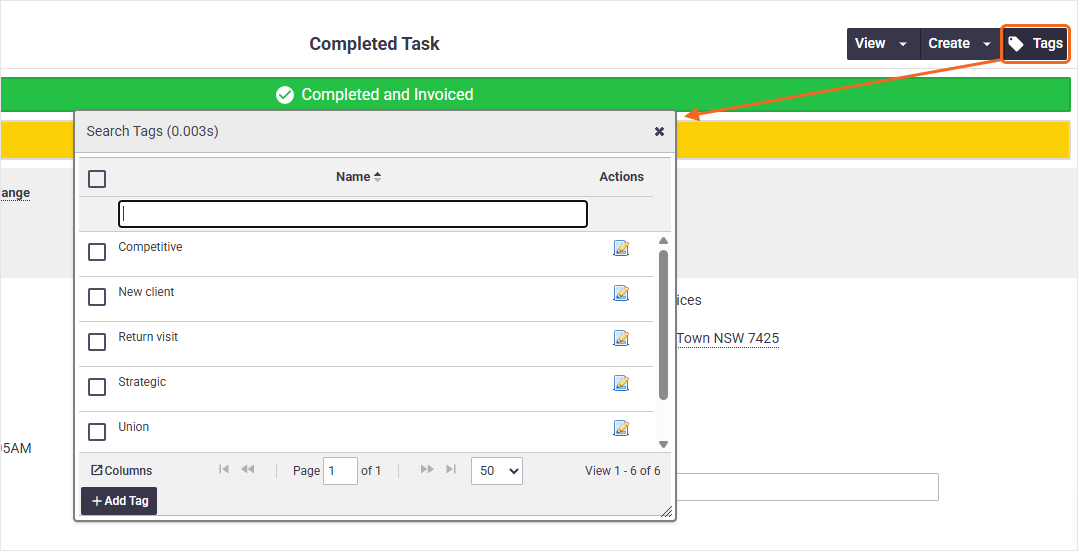
Office: Task Tags on Completed Tasks 🏷️
We've made Tags Tags editable for Completed Tasks! This will save you from having to reactivate tasks just to edit task tags.
Not using Task Tags? Task Tags are a great way to group your tasks in order to categorise them, similar to how you might apply labels to your emails.
Office: Asset Task History Tab
We've included 4 additional columns on the Task History tab on Asset Cards:
- Task Name
- Checked Date
- Checked By
- Checked Value
This is ideal for seeing the Last Check information at a glance.
You can also click the Last Check status of an asset on a task to easily open up this tab.

More on Asset Last Check | Asset Cards
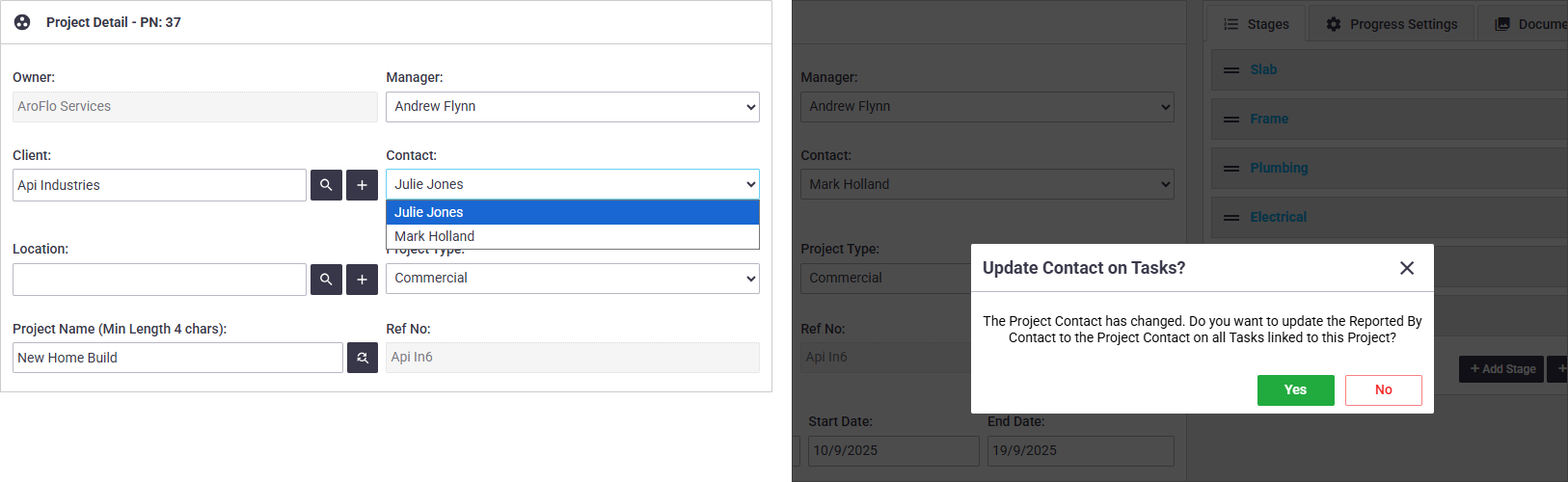
Office: Edit Project Contact 👷♂️
Need to edit the main contact for your project? You'll now have the option to change the contact for all tasks linked to the project, saving you from changing each one manually when you need to.
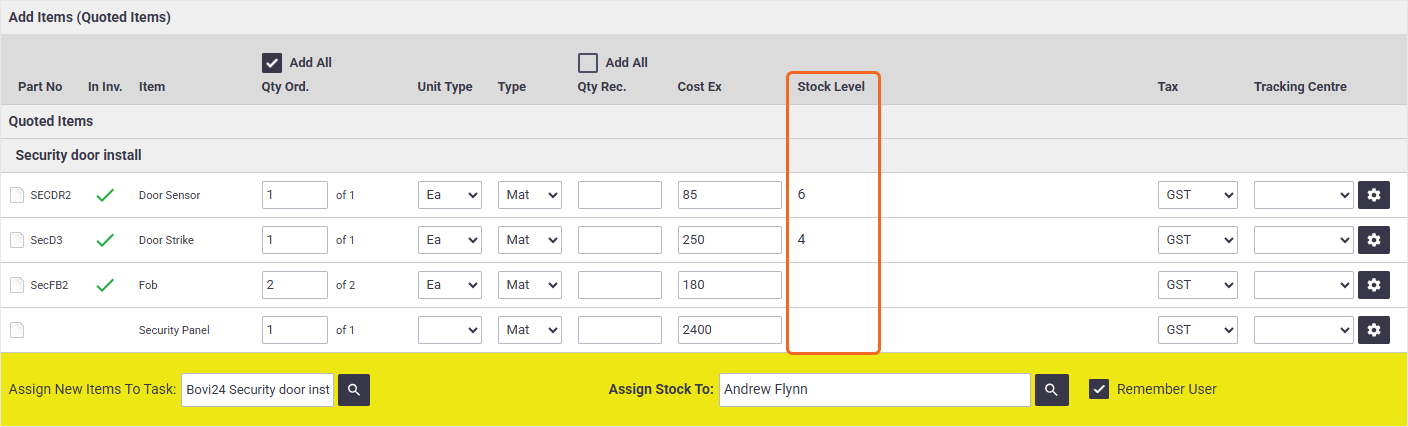
Office: View Stock Level on Purchase Orders for Quoted Items 📦
When adding quoted items to Purchase Orders, you'll now be able to see stock levels for items in your inventory.
This gives you clearer visibility of what you already have in stock and may save you from accidentally over-ordering items.
See more on adding Purchase Order Items.
AI Rewrite ✨✏️
Use Al Rewrite to turn your rough notes typed in AroFlo into professional-looking documentation.
Al Rewrite is now available in several areas of AroFlo Office and Field, including Notes, Quote/Task Descriptions, and when sending an email.
Want to quickly write an Invoice Description? Use the Generate Invoice Description option to easily create an invoice description based off information from the task.

Learn more: AI Rewrite in AroFlo Office | AI Rewrite in AroFlo Field
Report Fields and Filters
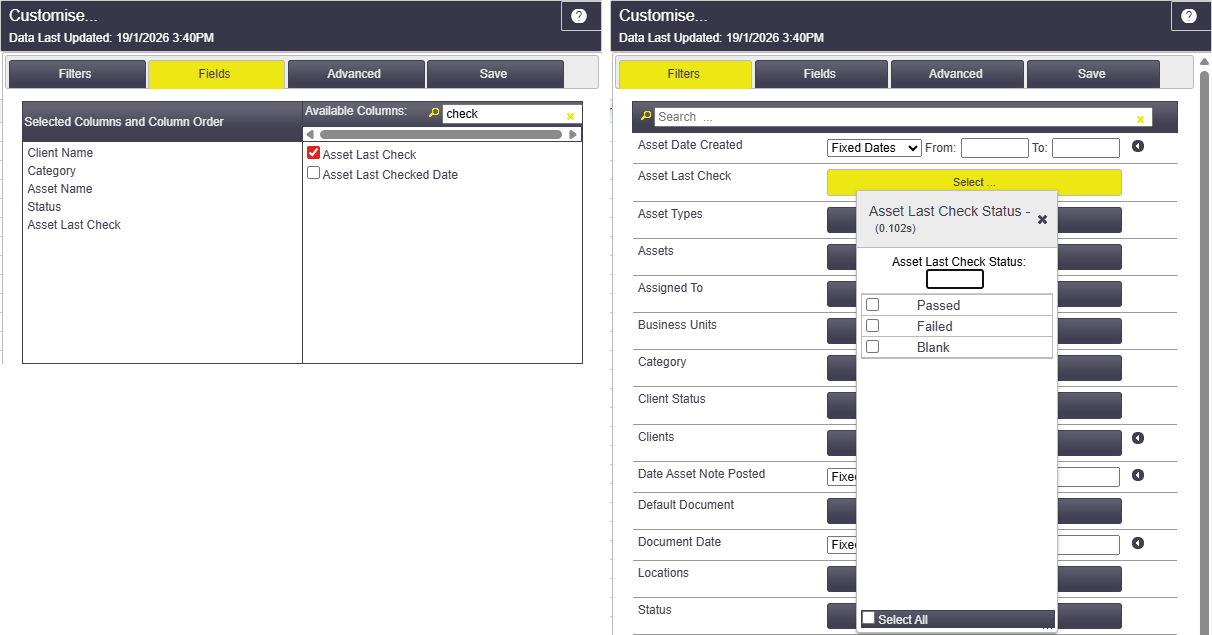
For Asset Reports, you can add Asset Last Check as a field. This is a great way to easily see the last check info of each asset.
You can use this field to group your results as well.
In addition, we've also added Asset Last Check as a filter, so you can easily check only assets with a Last Check Status of Failed, for example.
Lastly, we've also added Last Check as a data field when bulk importing assets into AroFlo!
More on Asset Last Check | Bulk Data Import | Reports